How this works
- Open any recent real record in Vancomm (v1).
- Click PDF on the record. From the template dropdown, pick the v2 version (e.g. "Quote v2", "Invoice v2", "Order v2").
- Compare it to what that doc used to look like. Tick each checkbox that looks right. Type any notes in the boxes.
- Click each tab above to work through each doc type. When you're done, hit Send to Lisa.
Your progress saves automatically as you go.
Two quote templates — pick the right one
There are now two quote templates: Quote v2 (with deposit notice) and Quote v2 — No Deposit. If you put a deposit % on the quote but pick the No-Deposit template, the deposit notice won't show. You have to pick the matching template.
Heads up — two different deposit % fields
There are two deposit % fields and you have to set them both. This is a Scoro limitation — we need something on the quote so the deposit notice can show on the PDF, but Scoro can't automatically push that value into the second field. Lisa tried. Can't be done yet.
1. On the Quote → "Deposit % (if applicable)"
This only sets the bolded percentage in the deposit notice paragraph on the Quote PDF. It does not calculate any amount — it's just text on the printout.

2. On the Prepayment / Deposit Invoice → "Total to be paid in advance"
This is the field Scoro uses to actually calculate the deposit amount on the Deposit Invoice. Set it when you create the Prepayment, regardless of what was on the Quote.
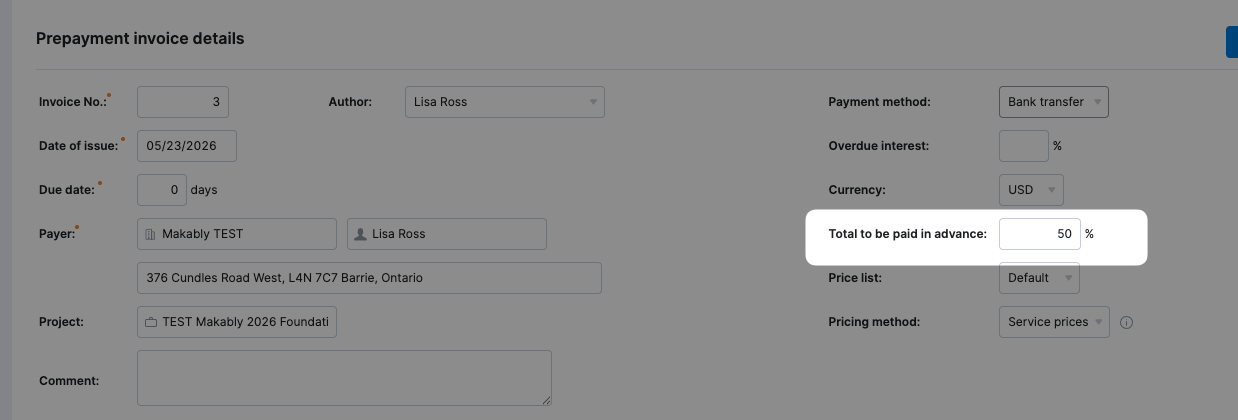
If you set 20% on the Quote and 20% on the Prepayment, everything matches — the Quote tells the customer "20% deposit" and the Prepayment invoices them 20% of the total. If the numbers differ, the Quote PDF text says one number and the Deposit Invoice charges another. Set them both.
Quote with deposit
- ★ Updated / new this round — please review
- Previously reviewed
Quote no deposit
- ★ Updated / new this round — please review
- Previously reviewed
Invoice final invoice
- ★ Updated / new this round — please review
- Previously reviewed
Deposit Invoice prepayment
- ★ Updated / new this round — please review
- Previously reviewed
Order for shop floor + pickup
- ★ Updated / new this round — please review
- Previously reviewed
Packing Slip ships with goods
- ★ Updated / new this round — please review
- Previously reviewed
Discounts line item + total
Send to Lisa
Hit Submit when you've gone through everything. You can come back and submit again if you spot more.
Your progress saves automatically as you go — you can close this and come back.